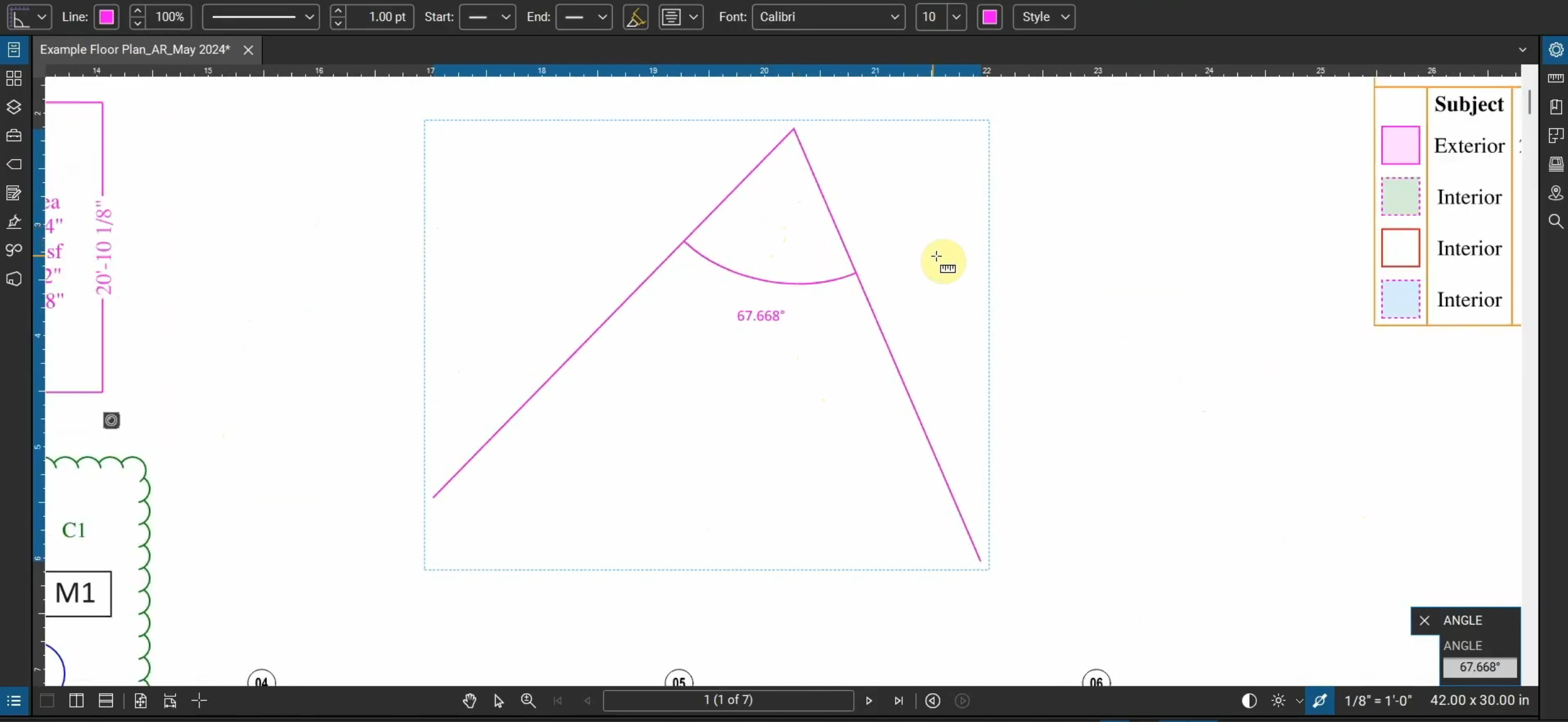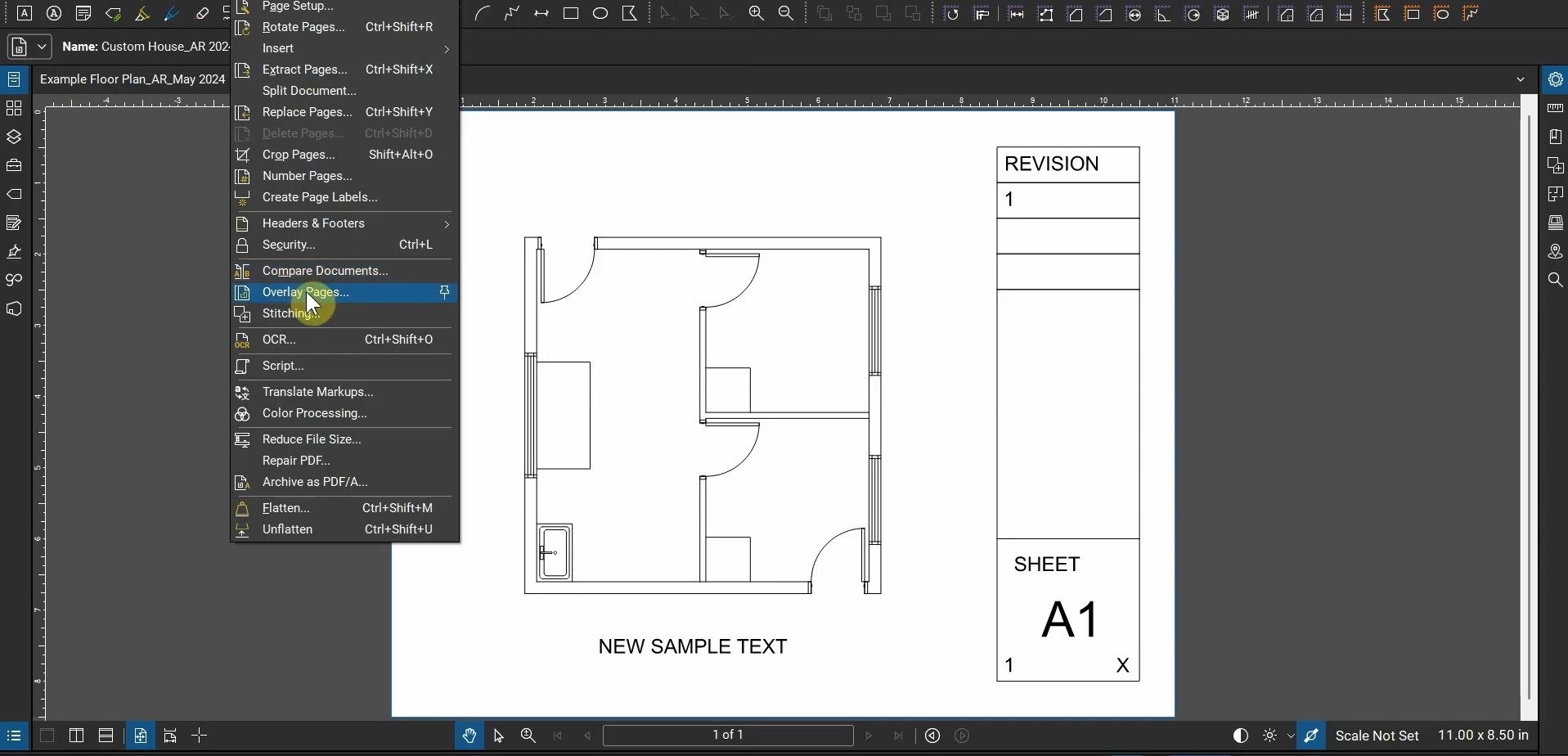

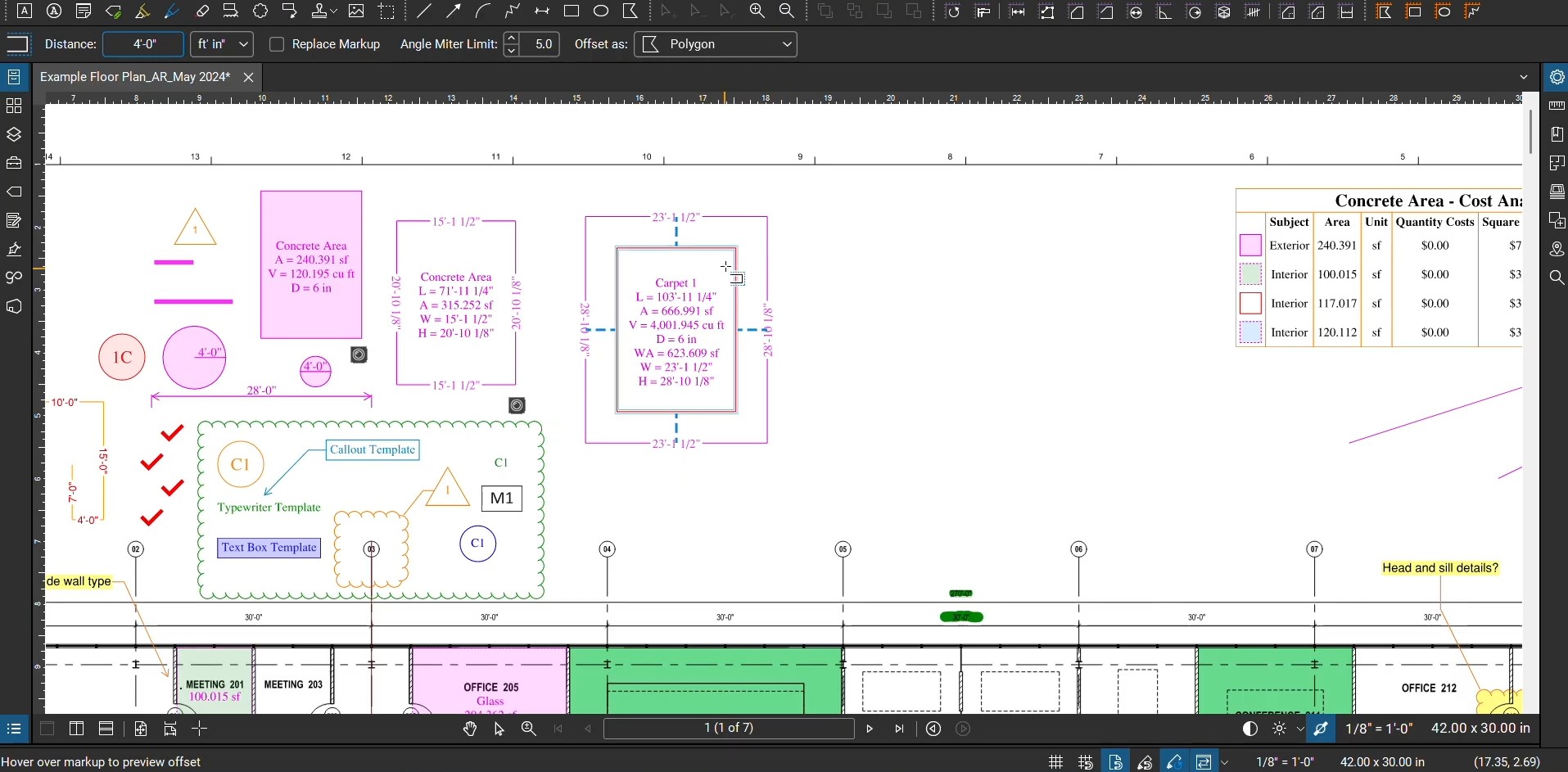
When we install and use Bluebeam Revu for our first time, the program's interface is set up to maximize our viewing space and minimize clutter. As we begin to use more functions and tools, it benefits us to make some adjustments and include more 1-click buttons to improve our efficiency.
Revu's "Profiles" let us switch between different customized interfaces. After turning on things like the "Status Bar", "Paste-In-Place", and even "Save As", we can expedite our workflows.
Setting up Bluebeam Revu with a robust and efficient Profile can help us complete work faster. For more information, please contact us at info@ddscad.com.
Related Posts
Architectural Workflows with Bluebeam Revu
Where does Bluebeam Revu fit into an architect’s workflow? This video goes over creating PDFs…
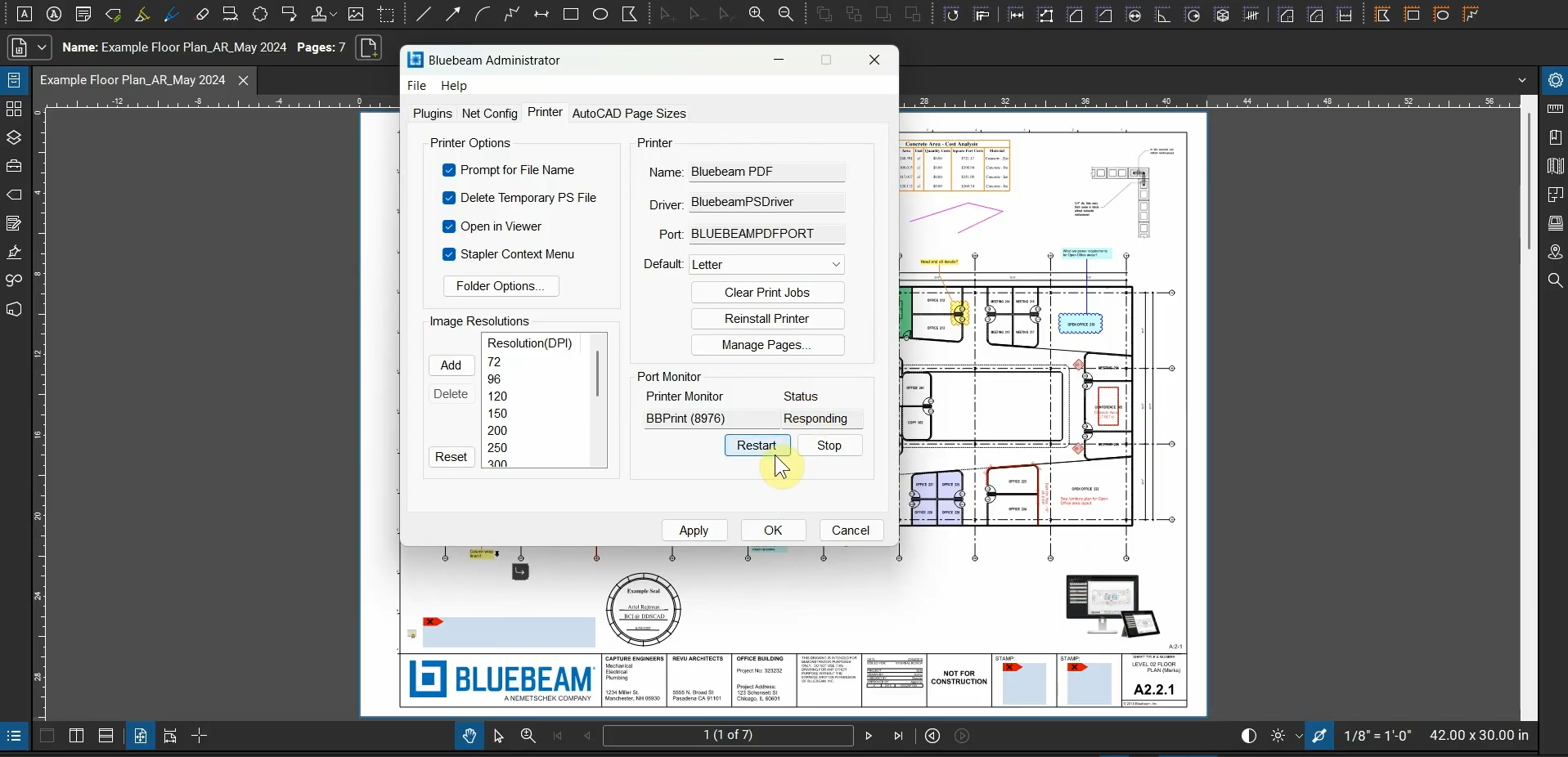
Fix the Bluebeam Printer Plugin
After we install Bluebeam Revu, we’re able to use the Bluebeam Printer in many programs.…

What’s New with Bluebeam Revu 21.9
Bluebeam Revu’s been updated to version 21.9! This update provides fixes to printing bugs, control…
Create Precise Designs with Sketch to Scale Tools in Bluebeam Revu
Instead of relying on relative measurements that can’t be set to a specific measurement without…