

December 18, 2020
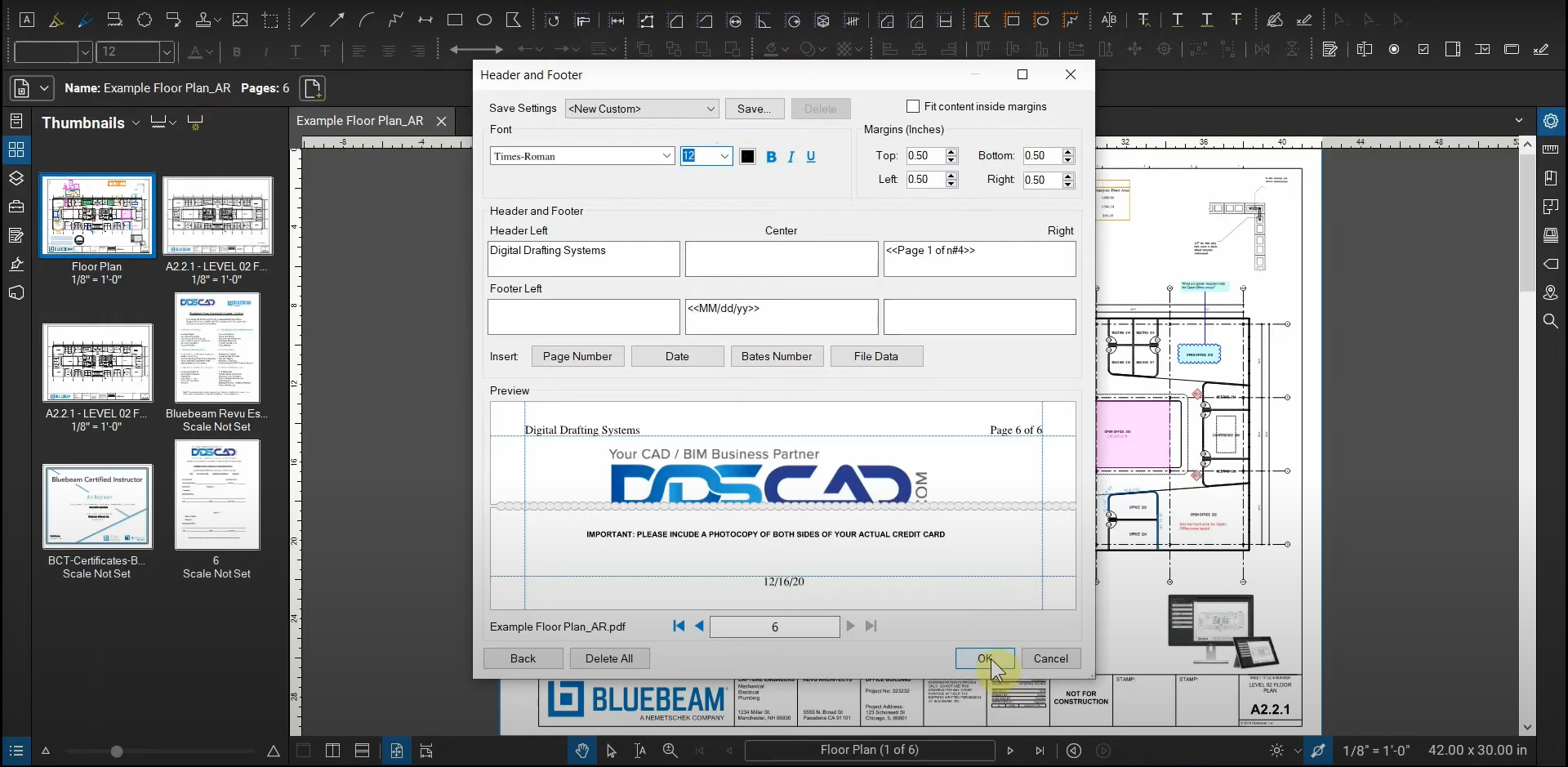
Creating Headers & Footers with Bluebeam Revu
Placing identifying data on our sheets (such as page numbers, the date, and the author’s name) can be monotonous and time-consuming if your document has more than a few pages. In Bluebeam Revu, we can use headers and footers to automatically populate our pages with important information. If we want to only create headers and…
Read more
POSTED BY
Ariel Rejtman
December 14, 2020
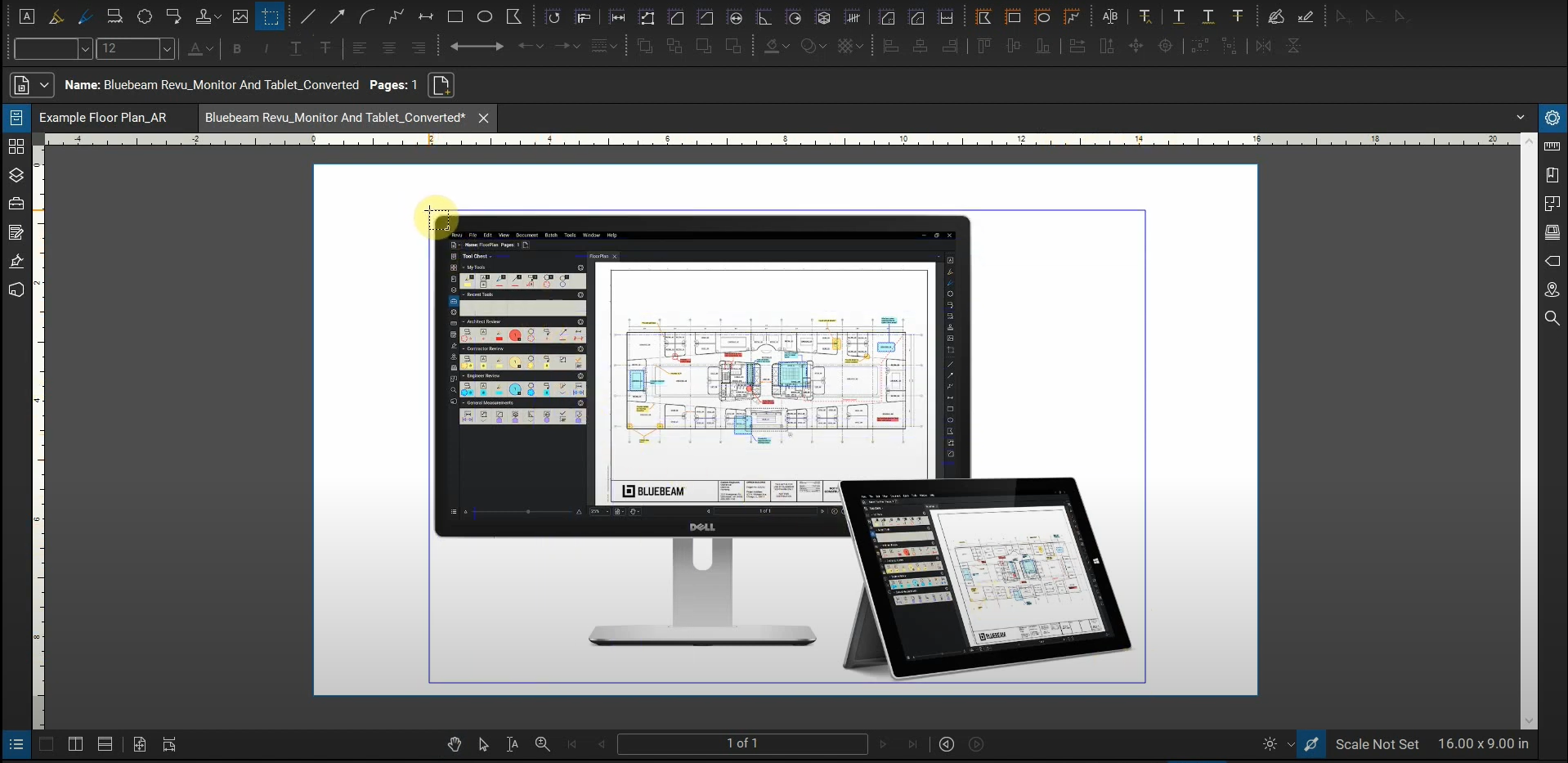
Converting an Image into a PDF with Bluebeam Revu
While Bluebeam Revu can only open and edit PDF files, we can convert many common file types into a PDF. We can use Revu to open an image, make a copy of it, and automatically convert it into a PDF. Once our image is converted into a PDF, we can place markups on it. If…
Read more POSTED BY
Ariel Rejtman
December 9, 2020
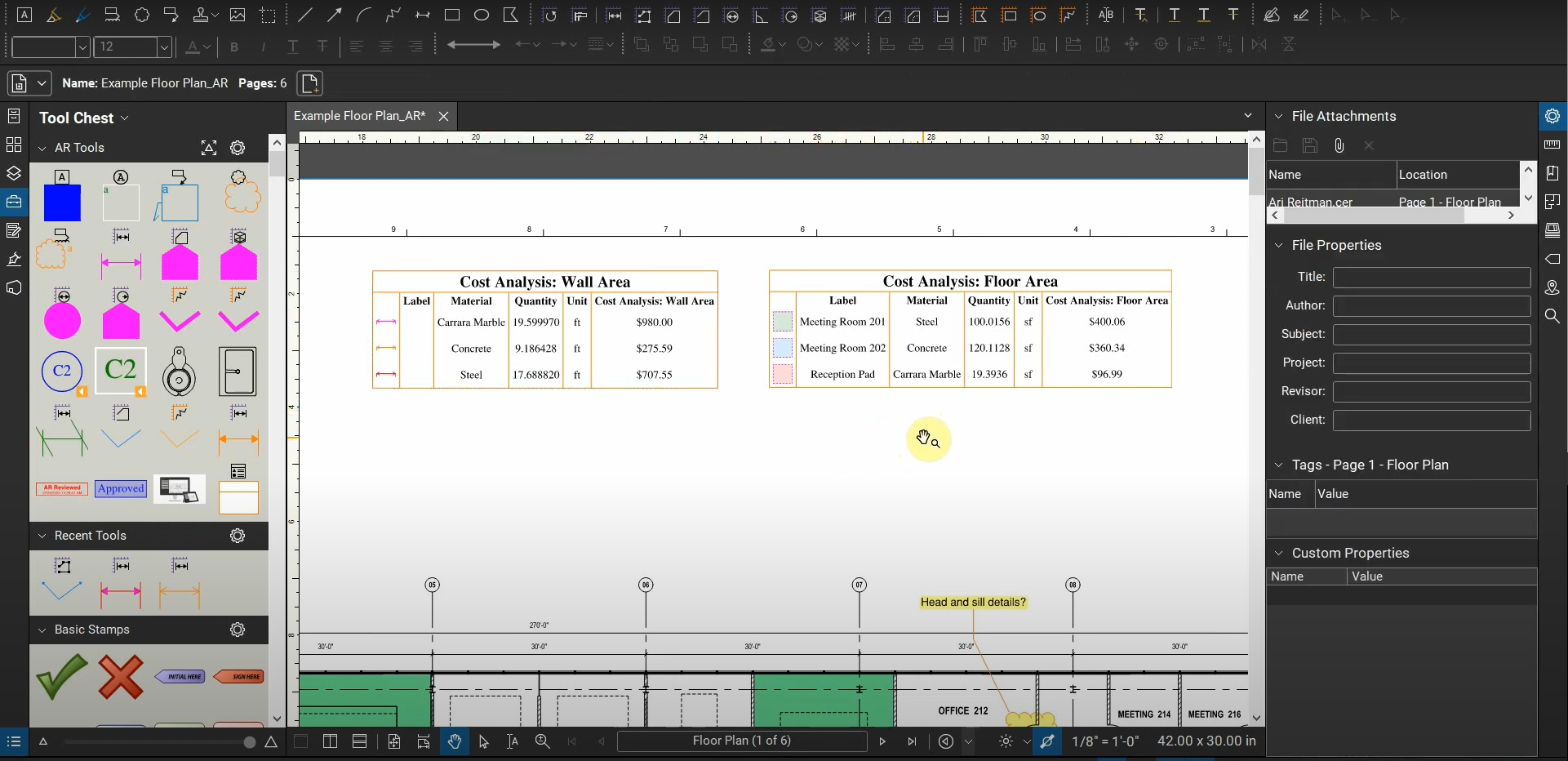
Creating Legends in Bluebeam Revu
While we can group and categorize all of our markups in our Markups List, we can also group specific markups into their own list that can be placed on our sheets. This list is called a “Legend” in Bluebeam Revu. Our legends can be customized to include specific columns of data. We can format a…
Read more POSTED BY
Ariel Rejtman
November 23, 2020
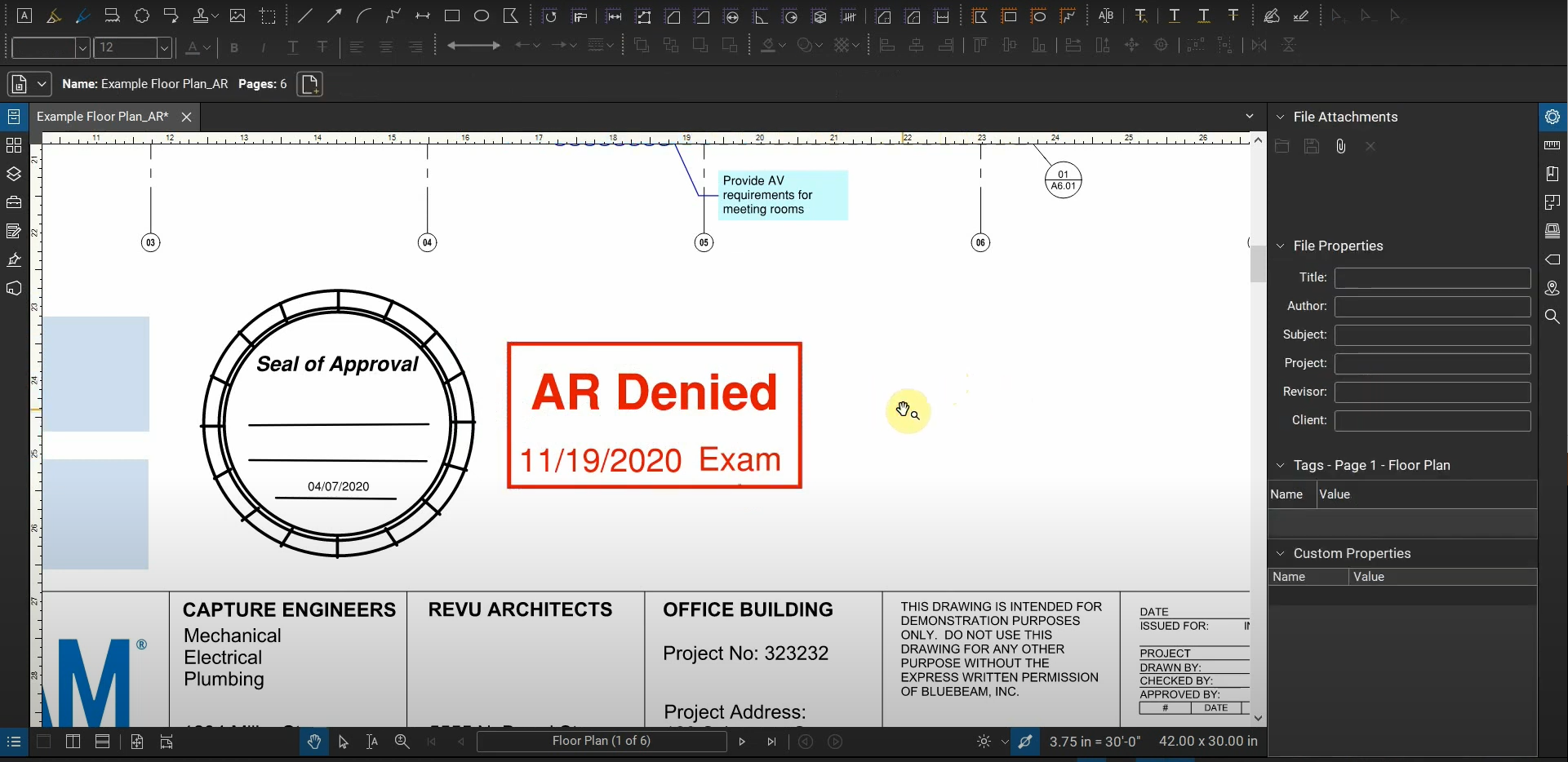
Creating Dynamic Stamps in Bluebeam Revu
Sealing a drawing with a stamp can be a tedious process, especially when stamping multiple sheets in a PDF set with time-sensitive information. Bluebeam Revu’s stamps allow us to seal each sheet consistently and retrieve timely information automatically from our computer’s clock. These “dynamic stamps” can be customized to display specific information that helps to…
Read more POSTED BY
Ariel Rejtman
November 17, 2020
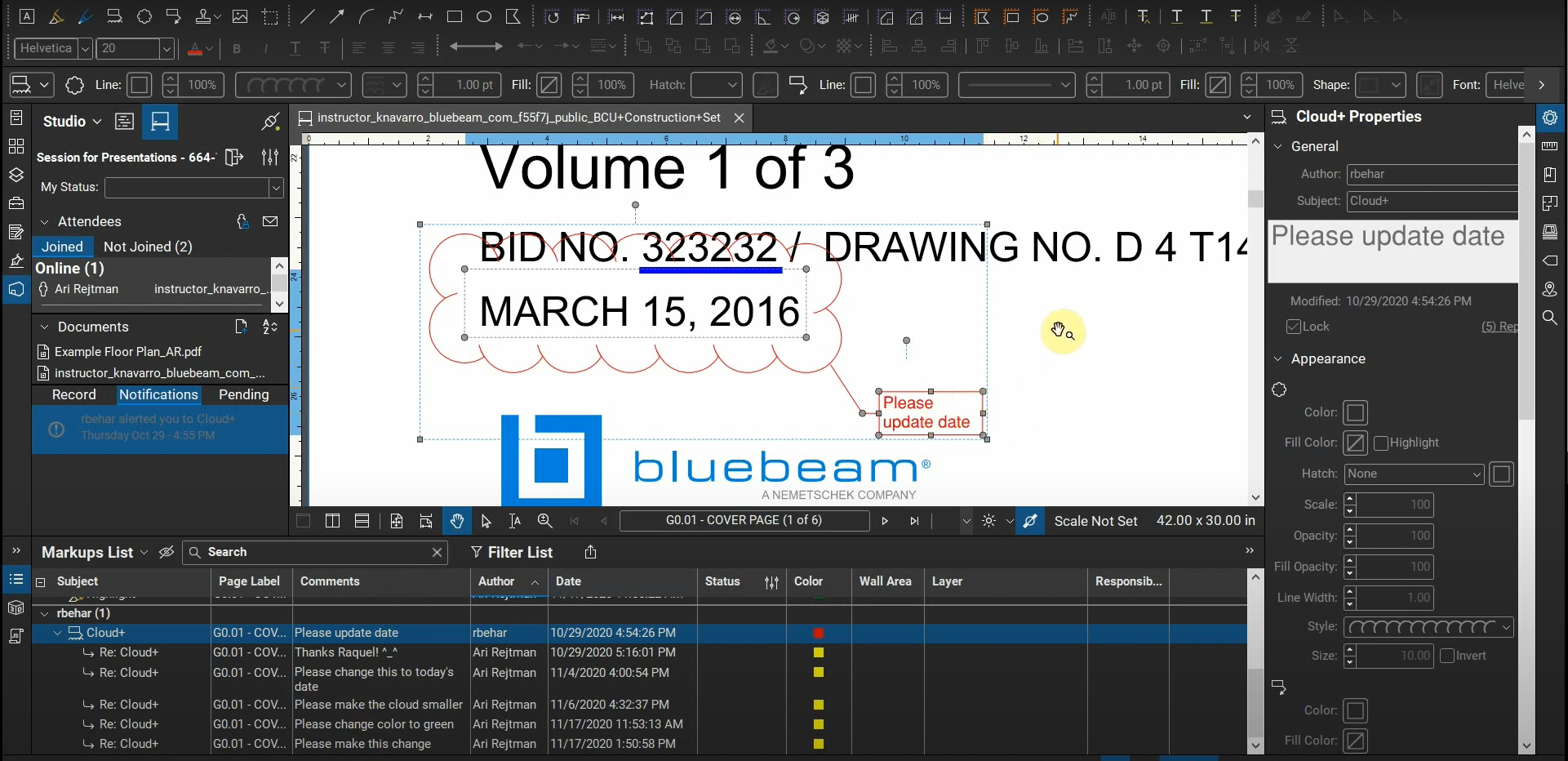
Replies & Alerts with Bluebeam Revu
Communication is important when coordinating markups and requesting changes. Instead of relying on emails, phone calls, and other external communication, Revu has efficient ways of preparing instructions for modifying markups and alerting a colleague about those instructions. A “Reply” is associated with a specific markup, and it can convey specific data. An “Alert” notifies a…
Read more POSTED BY
Ariel Rejtman
November 4, 2020
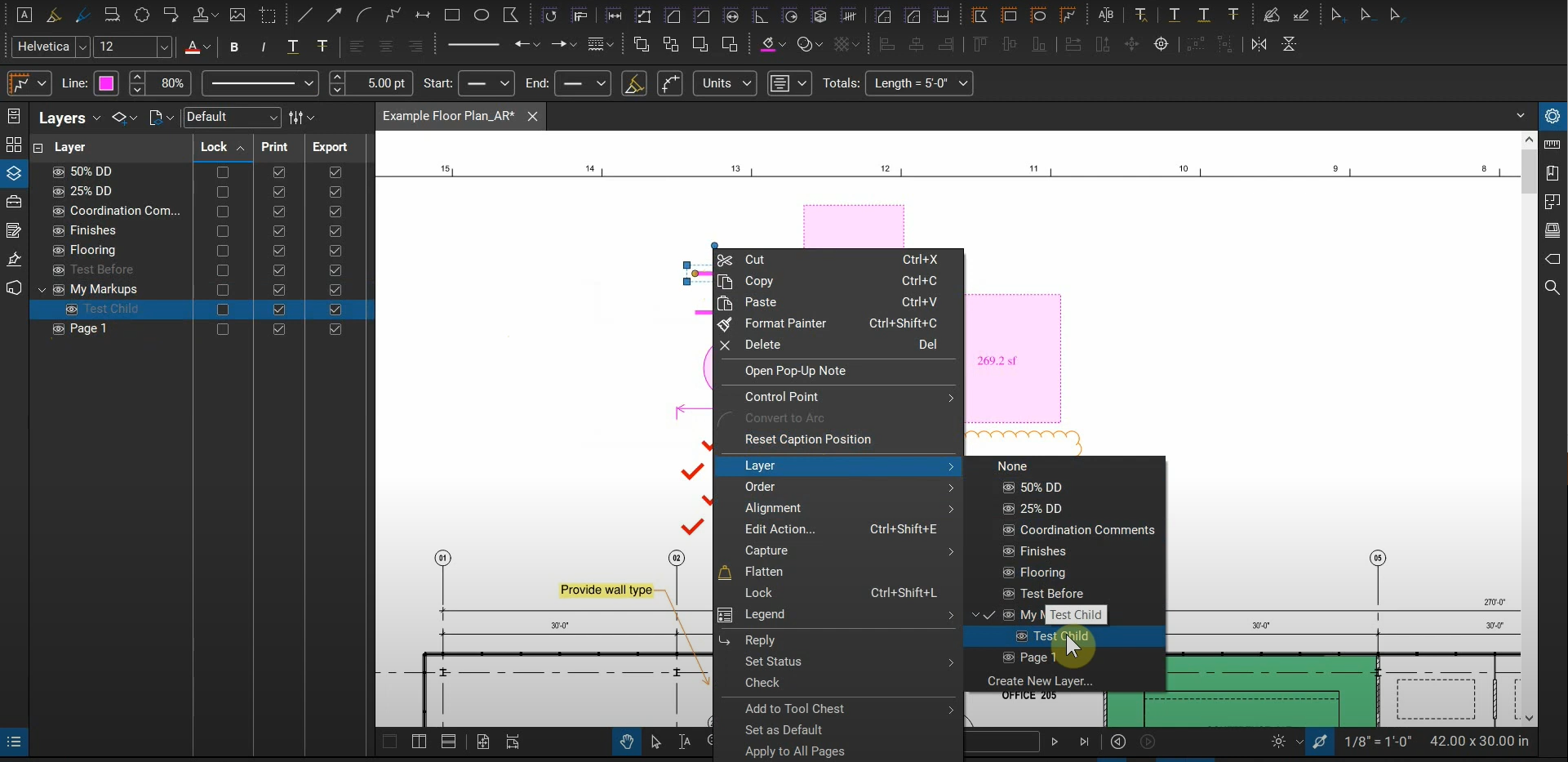
Layers with Bluebeam Revu
Some documents are complex and contain multiple markups for different disciplines and design milestones. We can group these markups into Layers that function similarly to layers in CAD and BIM programs. Layers can be turned off, locked, and toggled to print or export. We can isolate specific layers and turn all layers on with single…
Read more POSTED BY
Ariel Rejtman
October 27, 2020
Bluebeam Revu for Government – Webinar
Join our Bluebeam Certified Instructor and AEC Technical Specialist, Ari Rejtman, as he demonstrates how to do the following: 1. Develop best practices for digital reviews.2. Improve paperless workflows.3. Sign and seal multiple pages in the same PDF set.4. Identify changes in revisions quickly.5. Communicate with clients efficiently.6. Save commonly used markups to tool sets…
Read more POSTED BY
Ariel Rejtman
October 16, 2020
Edit PDF Content with Bluebeam Revu
Data that’s been flattened to our page seems to be difficult to modify. Revu’s “PDF Content” functions allow us to edit this “Vector Data”. We can turn this data into “Snapshots”, and these Snapshots can be saved to our Tool Chest for further use. We can also cut and paste content, along with simply deleting…
Read more POSTED BY
Ariel Rejtman
October 15, 2020
Visual Search with Bluebeam Revu
Locating specific text and images can be difficult in dense documents with multiple sheets. Bluebeam Revu’s Visual Search function allows us to find copies of data and graphics very quickly. Not only can we search for text, but we can also search for vector data that’s been flattened to our sheet. Even if the data…
Read more POSTED BY
Ariel Rejtman
October 14, 2020
Snapshots with Bluebeam Revu
Our documents have flattened data that’s useful if we could place them into our Tool Chest. We can use the Snapshot tool to capture portions of our documents and use them as markups. The Snapshot tool can be used to create a rectangle around objects. If you have a polygonal object, you can use the…
Read more POSTED BY